
Changing the scale allows you to prioritise either accuracy (finer scale) or speed (coarser scale) when getting results from your workflow. We recommend you learn about how scale affects your results before adjusting the scale in your workflows.
You can change the scale that your workflow runs at by clicking on the cog icon next to the Run button in a project.
Select the scale on the slider that you would like to apply to your workflow.
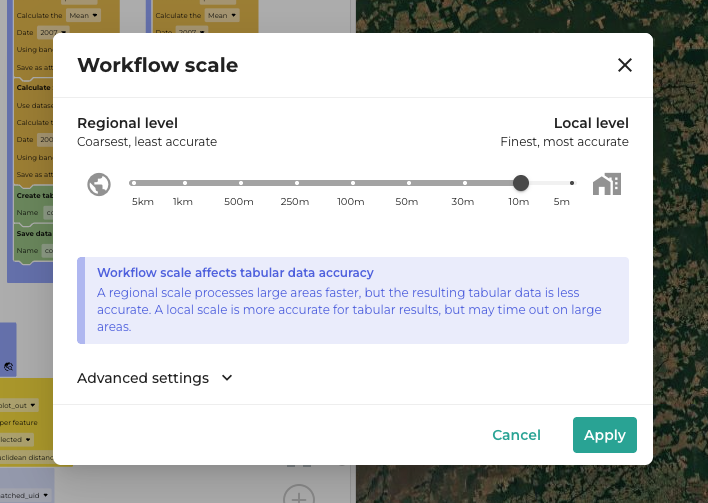
We recommend using a coarser scale when you need quick, broad-brush results, or your Area of Interest is at a regional or country level. To get the highest level of accuracy, use a finer, local scale.
When you save your project, the scale is saved, and will apply when the workflow is next run. This also applies to team projects, and any templates you have created for your team.
What scale was my workflow run at?
You can see what scale your workflow was run at in workflow settings modal, and at the bottom of each table in the dashboard.

The scale is also included in the workflow log available to download from the Dashboard tab.
Advanced settings
Maximum number of pixels
When running workflows that use the Map block or the Table block (rather than the Export block) there is a maximum number of pixels that can be processed in one go.
The maximum number of pixels is capped at 10,000,000,000 to prevent workflows from timing out. Decreasing the maximum may change the scale the workflow runs at if Best effort is applied.
Best effort
When best effort is enabled, if the workflow requires more pixels to be processed than the maximum number of pixels allowed, then the finest possible scale is used without the workflow timing out.