
.png?width=300&height=358&name=True%20Color%20(3).png)
-1.png?width=300&height=358&name=True%20Color%20(4)-1.png)
Clouds are a problem for all optical imagery. As you can see from the image above, there are two main problems. The first is that clouds themselves obscure the land surface, but at least they are distinctive and should be easy to find and remove. The second is the cloud shadow. The shadow is more problematic because you can still see the ground surface below, but the solar illumination is different to the non-shadow areas, so we really want to get rid of them too. In this article, we will explore three different methods to get rid of the clouds and produce a continuous cloud-free image.
METHOD 1: Choose an optimum parameter to integrate
One approach to masking out clouds is to aggregate over a long time period and try to choose the least cloudy pixel in that time series. Typically, clouds are much brighter in all optical channels than the ground beneath, so we don't want to aggregate images using the mean, as that would result in a value that is biased by the presence of cloudy pixels in the time line.
However, if we aggregate our images using the median, we are more likely to find a pixel over the time period that is cloud free. For very cloudy areas, even using the minimum might be required to ensure a cloud free pixel, but be aware that this may skew your analysis.
In a similar way, if you are actually trying to calculate an index, rather than look at the original image bands, you might choose another metric as the aggregation parameter. For example, clouds have such a low NDVI that if you are interested in looking at NDVI then choosing maximum will return the highest NDVI and ignore any cloud impacted values.
This is a low-tech approach that requires some experimentation for your particular site to achieve optimum results, but is quick and straightforward.
METHOD 2: Remove scenes with too much cloud cover
To mask out clouds in Earth Blox use the Filters-> Mask Out Clouds, block, as shown in the Sentinel 2 workflow below:
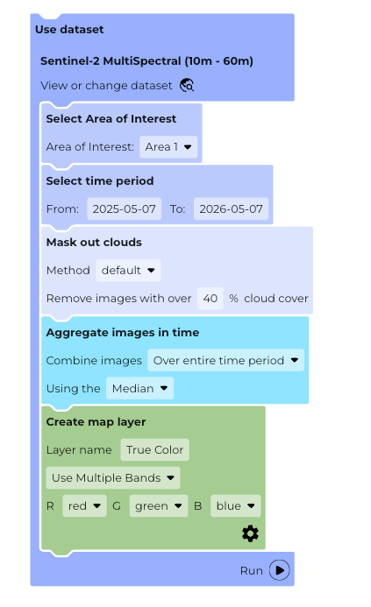
Note that this block will be selected by default if you choose and optical image dataset.
For Landsat, there is only the default block. For the default method you are choosing to first eradicate all of the image scenes that have an average cloud cover percentage greater than the value you choose in the block.
For Sentinel 2, this block also implements a subsequent pixel-based masking approach that removes pixels that have been flagged as too cloudy by the Sentinel 2 data providers.
The default approach is quick as it keeps processing to a minimum, but as a consequence, the quality of the cloud masking is quite basic and is not effective at removing areas of shaddow. It may, for instance, mistake areas of snow, or bright buildings, as cloud and remove them too.
METHOD 3 (for Sentinel 2 only): CloudScore+
The Mask out clouds block when in a Sentinel 2 workflow allows selection of the cloud_score_plus as an option.
CloudScore+ is a quality assessment dataset designed specifically for Sentinel-2 imagery. Instead of trying to classify what is or isn't a cloud on an isolated date, CloudScore+ uses time series to compare an image to its historical timeline. This allows the model to differentiate between permanent, highly reflective ground features (like concrete or snow) and transient atmospheric interference.
CloudScore+ does not give a rigid "cloud vs. clear" binary mask, but instead it evaluates surface visibility on a continuous pixel usability scale from 0 (fully obstructed) to 1 (perfectly clear). When selecting this block the percentage value is now the usability score. Choosing 50%, for example, will remove all pixels that don't have a usability score above 0.5.
The impact on a single date is shown below. These images sequentially show the choice of 25%, 50%, and 75% for the single image scene.
.png?width=200&height=239&name=True%20Color%20(25).png)
.png?width=200&height=238&name=True%20Color%20(50).png)
.png?width=200&height=238&name=True%20Color%20(75).png)
Increasing the quality threshold removes pixels even when they have no visible cloud cover. This is because these pixels may be impacted by haze or thinner clouds at high altitude. Note also how the pixels are masked -- they are not assigned a new value. This ensures that the pixels that are used are actual values that were measured.
To achieve the complete cloud-free image shown at the top of this page required selecting a period of three months to ensure that every pixel had at least one pixel value that met the threshold.