
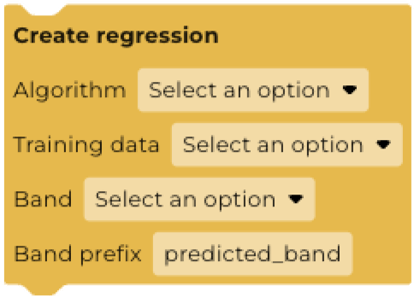
The Create regression block allows you to input a dataset and create a new numeric band with predicted values based on training data. The training data can come from a dataset already in Earth Blox, or from your own data.
A table of results and an accuracy assessment are automatically generated and are shown on the Dashboard.
The block was originally designed to allow users to locally calibrate a global datasets. Many global datasets for parameters such as forest cover or forest biomass can be very good on average over large areas, but inconsistent or less accurate over smaller, project-sized areas. If you have field data, or other data that you trust, you can use this to define a linear relationship between global data set and your local conditions.
The Create regression block is added to the workflow that contains the data set you want to recalibrate.
Algorithm
Linear regression: predicts the value of one variable based on the value of another. In this case, it will recalculate the input data using the linear relationship determined from the training data.
Training data
Choose a dataset to use as training data. Add a Save data for re-use block in the workflow you want to use as training data.
To use a feature collection as training data, use the Convert features to images block.
Band
Select the band of your image to use as training data. If your dataset has multiple bands, you will need to remove all other bands using the Remove bands block.
Band prefix
This is the name of the band containing your output.
Worked Example: Calibrating a Biomass Map for Tanzania
In this example, we want to predict biomass (our ‘dependent variable’, contained in our training data) using the European Space Agency's (ESA's) Climate Change Initiative (CCI) programme Global Forest Biomass product (our ‘independent variable’, contained in our input variable), using some field-based inventory data to calibrate the CCI data for an area in Tanzania (near Mkula).
To do this requires two workflows: one that handles the input data (the CCI biomass map) and the other that handles the training data. In this example, we are using open data of above ground biomass that has been reformatted into 1km sample areas. Since these data are features, not pixels, we have to convert them to a rasterised version as follows:
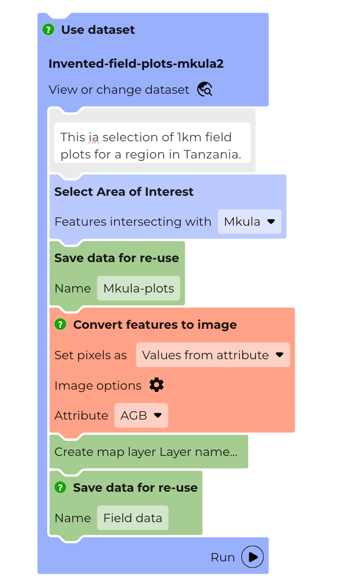
This provides output of several 1km plots represented by a collection of pixels that have a value corresponding to the above ground biomass value assigned to that plot. The biomass data is gathered in a different workflow and this is also where the Create regression block is placed.
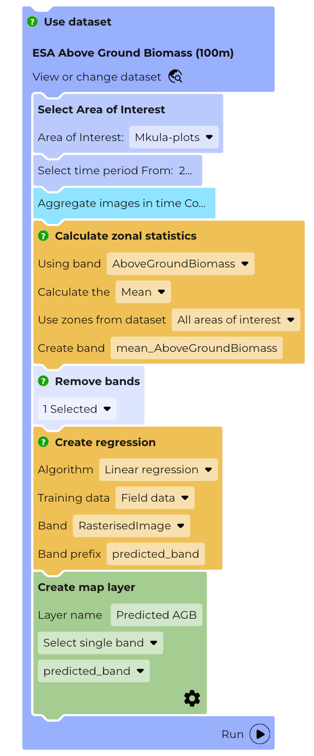
Note how in this workflow we have also used Calculate zonal statistics in order to average the biomass values over each 1km plot. This ensures we are looking at the 1km average in both the input data and the training data.
The Create regression block has the rasterised field data selected and outputs the calibrated dataset as predicted_band.
The DASHBOARD tab output looks like this:
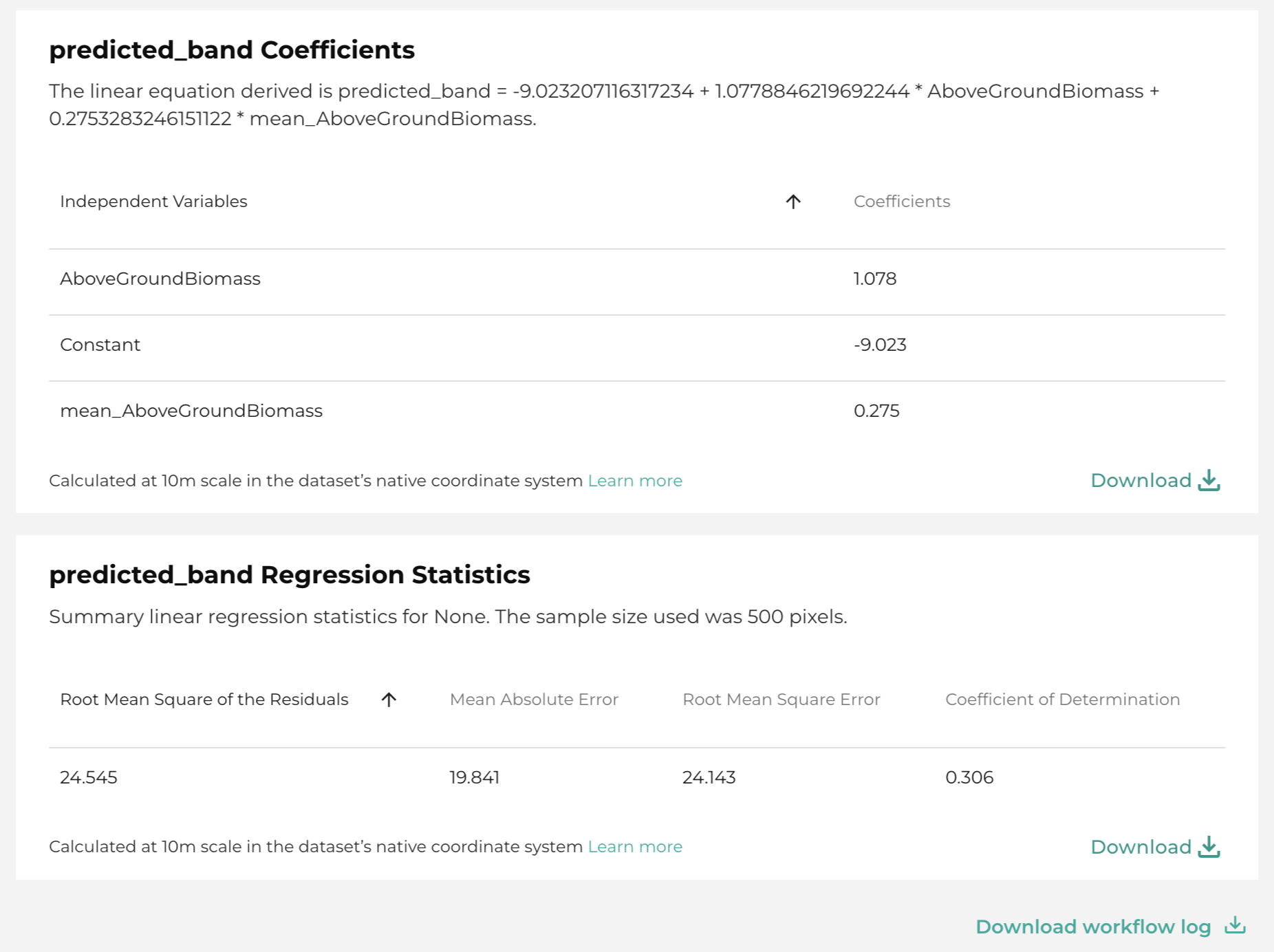
The first panel gives the linear relationship between input data and the adjusted data. Linear regression involves finding the line of best fit that best captures the statistical relationship between the two variables. The line of best fit has an ‘offset’ (intercept) and ‘scale’ (slope/gradient). The adjusted data in the test plots is generated automatically as output from the block (in this case, called predicted_band). Alternatively, to apply this calibration to the entire scene, you can incorporate the linear conversion into a calculator block.
The second panel summarises the statistics of the regression.
This approach can also be used for entire datasets to see the correlation between individual pixels across an entire Area of Interest.