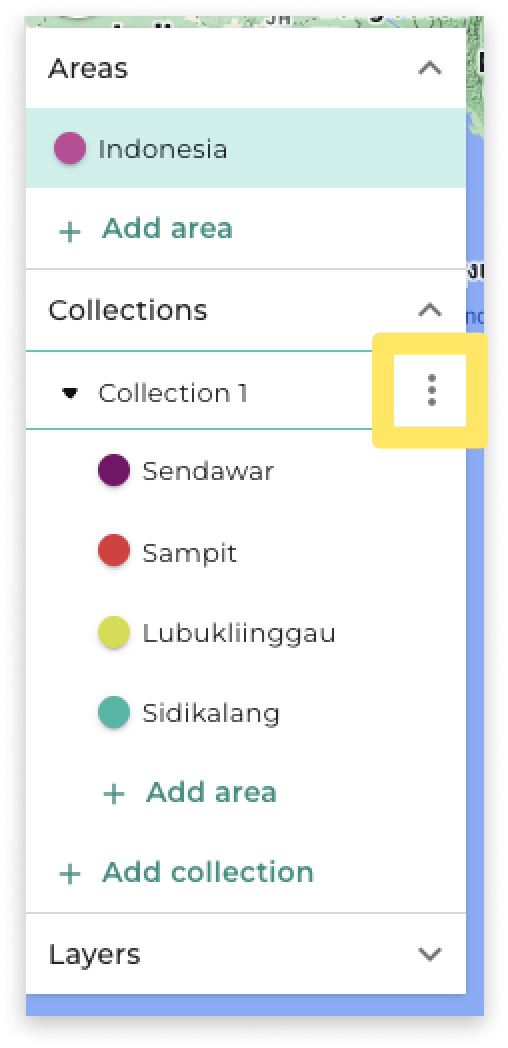
Adding areas to a Collection in your project allows you to use individual areas as grouping variables in a table.
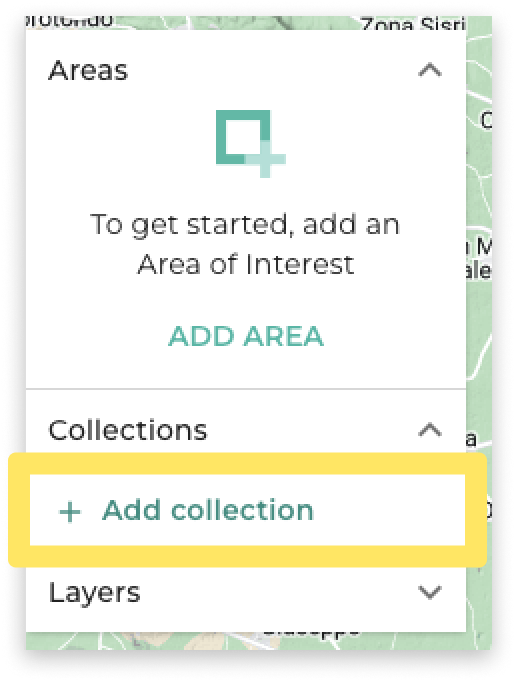
Under the Collections header, select Add Collection
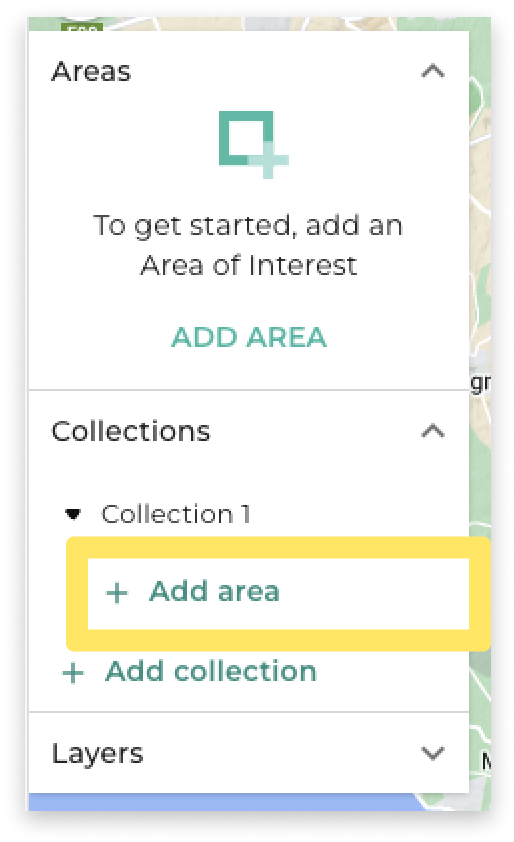
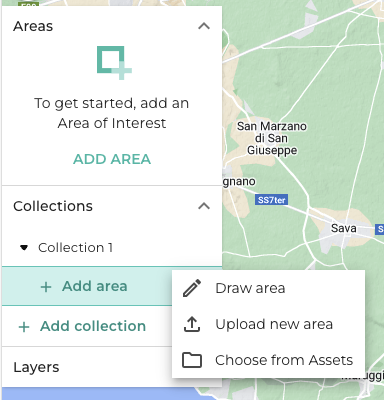
Select Add area under the Collection header.
As with adding areas, you can choose to:
- Draw an area directly on the map.
- Upload an area from your device.
- Choose from Assets to use areas you've already uploaded or pre-loaded countries.
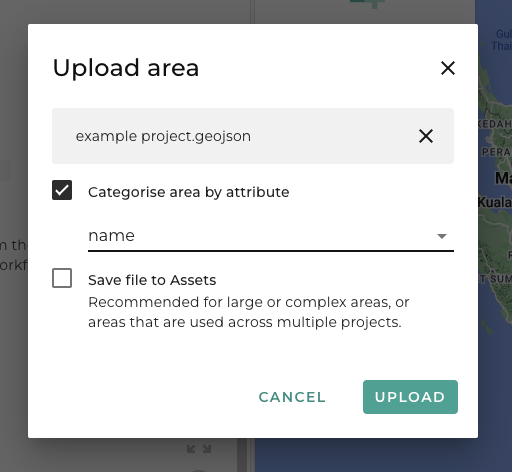
When choosing an existing asset or uploading a new file that contains multiple areas with attributes, you can choose to categorise your areas by an attribute.
All areas in a Collection must be within the boundaries of the Area of Interest you select in the Area of Interest block in your workflow.
You can click and drag on a Collection header to reorder it in the map panel.
Click on the extras menu icon that appears when you hover over to rename, export or delete a Collection.