
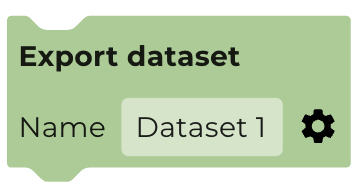
The Export dataset block allows you to create a new dataset file from your workflow that you can then add to your Assets or use in other GIS software. Filters and new bands created from blocks placed above the Export dataset block will be included in the saved dataset.
Exporting a feature collection (vector)
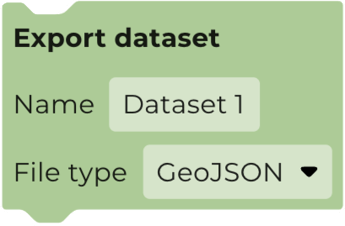
Adding the Export dataset block to a workflow with a feature collection will allow you to choose the location for your export.
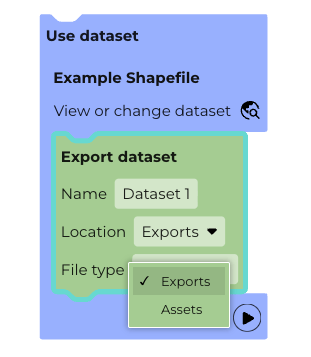
Selecting Assets will export your feature collection directly to 'My Assets'.
Selecting Exports will export your feature collection to Exports page. You can choose to export a GeoJSON, KML, KMZ, SHP, TFRecord or CSV.
Exports will fail if they take longer than one hour to run. To reduce the likelihood of this happening, remove any unnecessary attributes and reduce the Area of Interest.
Exporting an image collection (raster)
- GeoTIFF is a type of image file that stores both the image data and the geographic information which is used to locate it.
- All geospatial software can import and export data in GeoTIFF format, so if you use tools such as a GIS then you may be interested in exporting your map data in this format.
- To export your output as a GeoTIFF you need to add an Export as GeoTIFF block which can be found in the Output > Dataset Toolbox.
- Use this block to export your data as a GeoTIFF so that you can import it into other software or tools.
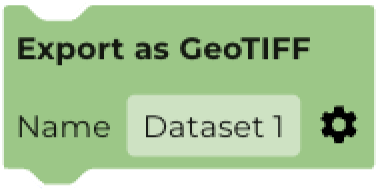
You add this to a workflow in the same position as you would an Add Map Layer block. For example:
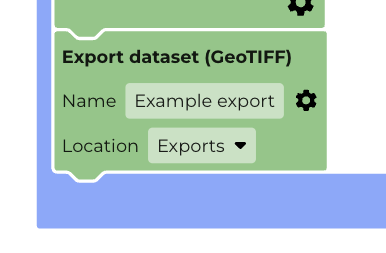
Configure your GeoTIFF download
- Click on the Settings icon (the black cog wheel) to choose:
- Your desired spatial resolution (which is the size of your pixels in metres).
- The image date that you would like to download.
- The band(s) you want to include.
- Once you have made your choices, select SAVE.
You are not currently able to download all the time points in a time series as one operation. These would have to be exported as individual downloads.
Starting the download
- When you RUN the workflow the GeoTIFF creation block generates a pop-up message asking you to CONTINUE in order to confirm that you want to download your GeoTIFF.
- GeoTIFF creation can take quite a long time and also uses more cloud resources, so we recommend you activate this block only when you have developed a workflow that is producing the output you are looking for.
- If you are not yet ready to download your file, you can select Disable Block (from the right-click menu on the block) so that running the workflow won't create the download task.
- You can re-enable the download block by right-clicking and selecting Enable Block.
Monitoring Progress
- Once you have selected Continue, this will then create the download task, which starts the background processing and will appear in your TASKS tab.
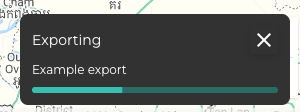
Exporting
- When the processing is complete, it will disappear from your TASKS tab, and will now be available for downloading in your ASSETS tab.
- The download button will allow you to export the file.
- The tile will also tell you how long you have left to download it. The file must be downloaded within 48hrs. It will then be deleted from the system.
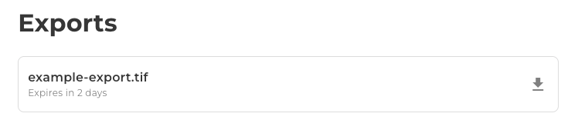
- Should you have any difficulties with downloading a GeoTIFF please contact the support team.
- Note: Depending on your licence type, you may have a limit to the number of GeoTIFF downloads.
Some GIS software may provide limited visualisation options when a GeoTIFF includes a combination of thematic and numeric bands. Use the Remove bands block to only export specific bands.
Click on the cog icon to define the resolution and date for your GeoTIFF.
Exports may fail if they take longer than one hour to run. To reduce the likelihood of this happening, remove any unnecessary bands, decrease the Area of Interest, or export at a lower resolution. If you can’t get the results you need, contact support@earthblox.io.