
This guide will show you how to export your map data as a GeoTIFF for use in other software.
TABLE OF CONTENTS
- Video Guide
- 1. Add the block to your workflow
- 2. Configure your download
- 3. Limit the data that you download
- 4. Starting the download
- 5. Monitoring Progress
- 6. Exporting
Video Guide
1. Add the block to your workflow
- GeoTIFF is a type of image file that stores both the image data and the geographic information which is used to locate it.
- All geospatial software can import and export data in GeoTIFF format, so if you use tools such as a GIS then you may be interested in exporting your map data in this format.
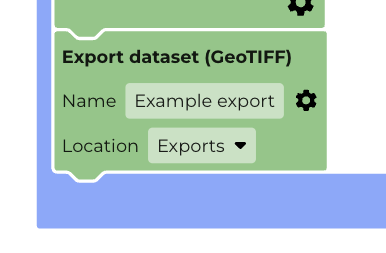
- To export your output as a GeoTIFF you need to add an EXPORT AS GEOTIFF block which can be found in the OUTPUT > EXPORT Toolbox.
- Use this block to export your data as a GeoTIFF so that you can import it into other software or tools.
- You add this to a workflow in the same position as you would an Add Map Layer block. For example:
2. Configure your download
- Click on the Settings icon (a black cog) to choose:
- Your desired spatial resolution (which is the size of your pixels in metres)
- The image date that you would like to download
- The band(s) you want to include
- Once you have made your choices select SAVE.
You are not currently able to download all the time points in a time series as one operation. These would have to be exported as individual downloads.
3. Starting the download
- When you RUN WORKFLOW the GeoTIFF creation a message will come up asking you to CONTINUE in order to confirm that you want to download your Geotiff.
- GeoTIFF creation can take quite a long time and also uses more cloud resources, so we recommend you add this block only when you have developed a workflow that is producing the output you are looking for.
- If you are not yet ready to download you can select DISABLE BLOCK AND RUN and it will run the workflow without creating the download task.
- You can re-enable the download block by right-clicking and selecting “Enable block”
4. Monitoring Progress
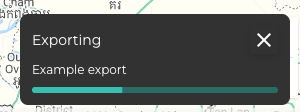
- Once you have selected Continue, this will then create the download task, which starts the background processing and will appear in your TASKS tab.
6. Exporting
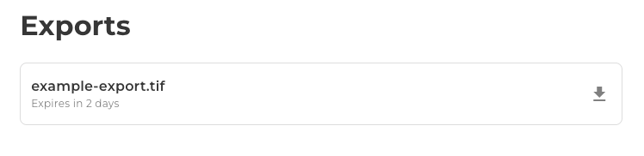
- When the processing is complete, it will disappear from your TASKS tab, and will now be available for downloading in your ASSETS tab.
- The download button will allow you to export the file.
- The tile will also tell you how long you have left to download it. The file must be downloaded within 48hrs. It will then be deleted from the system.
- Should you have any difficulties with downloading a GeoTIFF please contact the support team.
- Note: Depending on your licence type, you may have a limit to the number of GeoTIFF downloads.