
A project page is made up of the workspace, the map, and the dashboard.
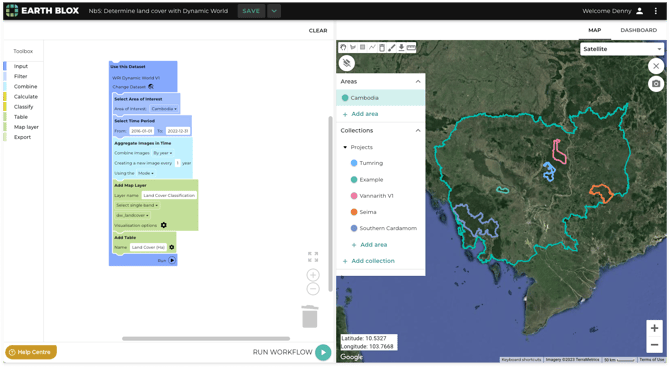
The workspace
The left pane contains the workspace. Build workflows in the workspace using the Toolbox.
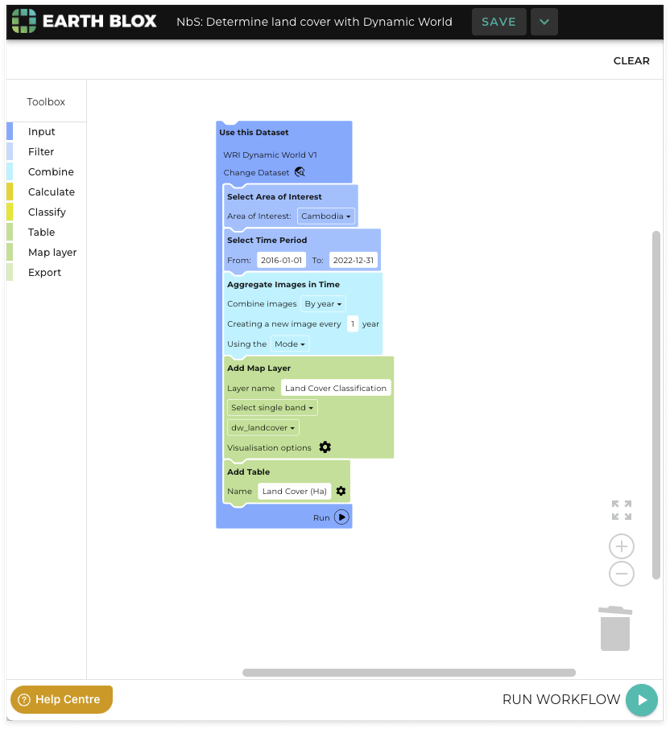
Run workflows by clicking on the Run workflow button.
Clear the workspace by clicking the clear button.
The map
The right pane shows the map. Add areas to your project, and view layers created as outputs.
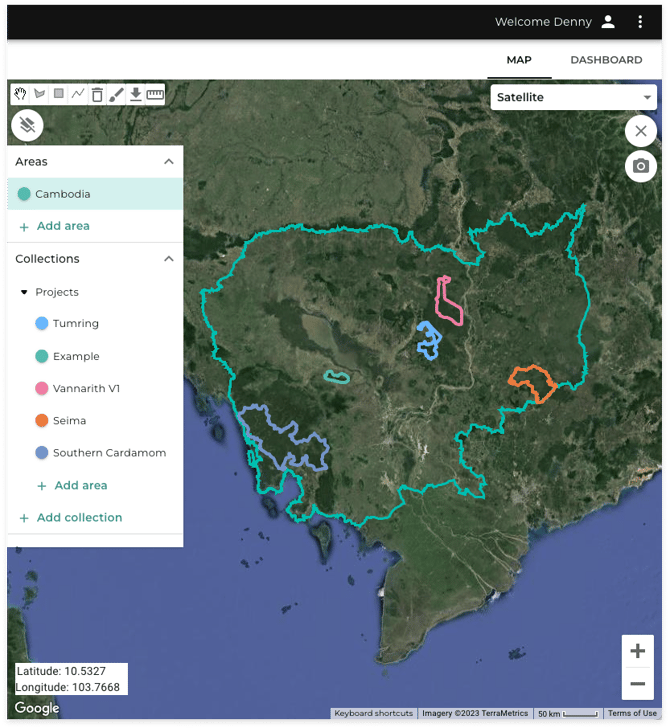
Change the basemap by selecting from the dropdown in the top right hand corner of the map.
Clear the map of all areas, collections and map layer outputs from the map by clicking the X button in the top right hand corner.
Take a screenshot of the map (including any visible output layers) using the camera button in the top right hand corner.
Zoom in or out using the controls in the bottom right hand corner.
Hide the map panel using the button above the map panel. Click on the icon again to open it.
The dashboard
The right pane also shows the dashboard, which sits behind the map tab. Tables and charts outputs from workflows are found on the dashboard.
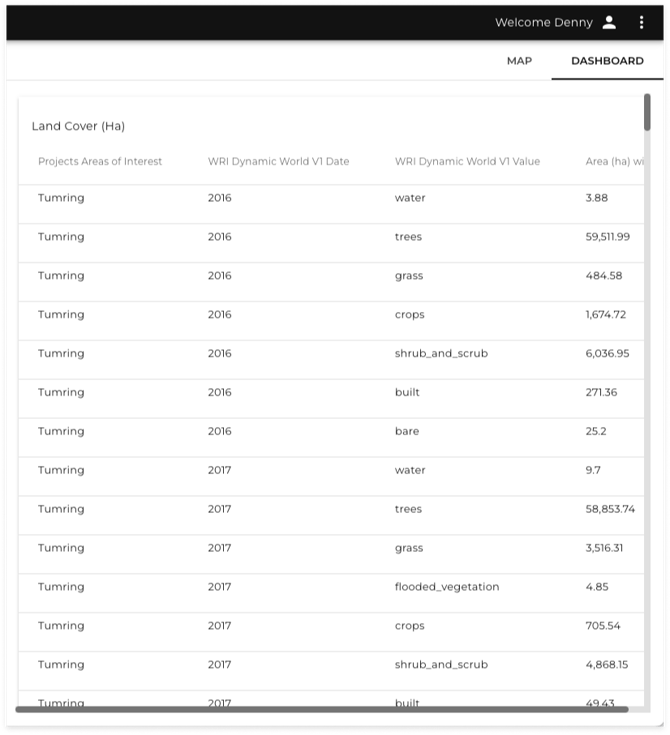
To download tables, click on the download icon in the bottom right corner of outputted tables.