
The Create Table block gives you the option to add a chart of the data in the table.
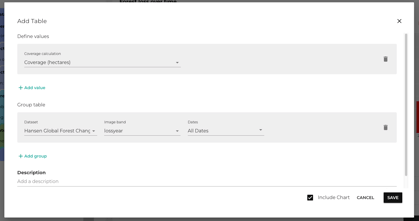
- Step 1: Check the include chart box.
- Step 2: Run the workflow to see the chart
- Step 3: Modify the chart.
- Step 4: Save your chart.
Step 1: Check the include chart option.
Once you have set up the table block, check the Include chart option box at the bottom of the modal.
Step 2: Run the workflow to see the chart
When you run the workflow that includes the active table block, you will get a chart as well as a table in the dashboard. It will look something like this: 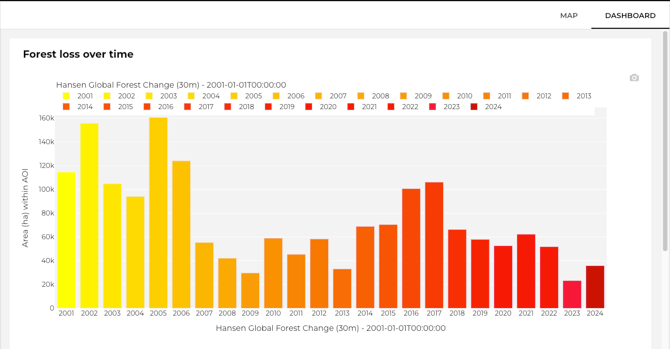
Step 3: Modify the chart
- You can switch the individual data series on and off by clicking them in the legend.
- To zoom into a portion of the chart, click and drag the area of interest.
- And to return to the original scale double-click the area of the chart.
- You can move the chart data points relative to the axes by hovering over the central part of an axis to get the double-headed arrow to drag and move
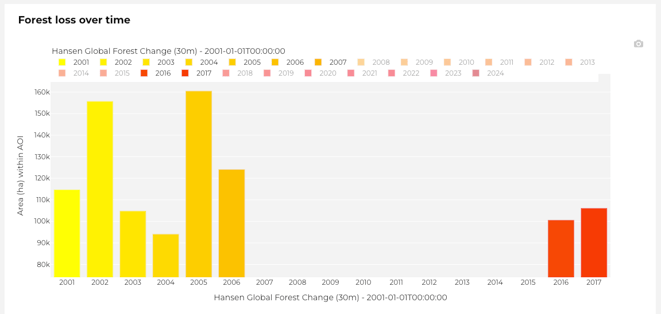
- And you can change the scale of an axis by hovering near the end of an axis to get the single-headed arrow to drag and scale.
Step 4: Save your chart
The camera icon in the top right allows you to export your chart as a PNG file.
We always track the feedback you give us so that we can improve how we help you.
Please let us know if you found this one helpful.