
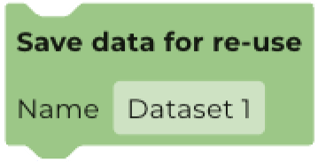
In this article, we look at cases when you might want to use the outcomes of one workflow within a different workflow. To do this we will use the Save Data for Re-use block.
Sharing Data Across Workflows
TABLE OF CONTENTS
- Step 1: Save the data in a workflow
- Step 2: Input the saved data into a different workflow
- An example where you might want to share data across workflows
Step 1: Save the data in a workflow
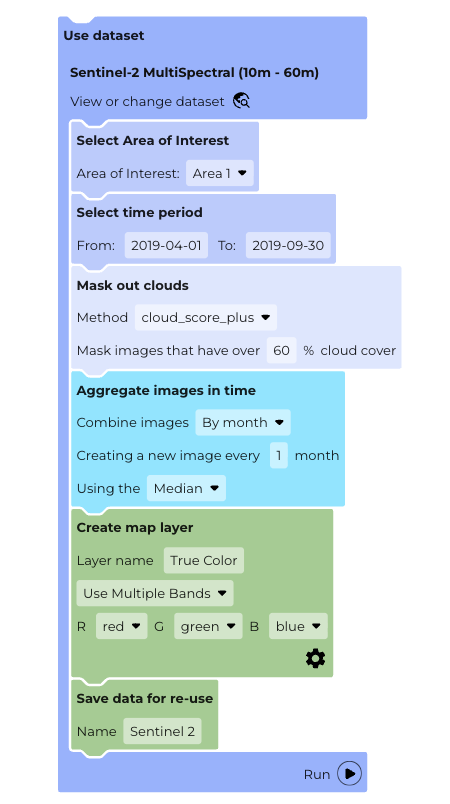
- To save the outputs from a workflow, simply include a Save Data for Re-Use block within a workflow (as in the example below).
- This will save all the bands that are available at that point in the workflow and assign a name to this dataset.
- Remember to give your saved data an easy-to-recognise name.
- It doesn't matter how many workflows you have, you can save all of them, but do give them different names.
Step 2: Saved data are then available in all other workflows
- To reuse these data in another workflow, simply look for the named dataset in any appropriate dropdown menus.
- All saved datasets will appear in drop down menus in an block that has a dataset as input, such as all the calculate blocks
Note: The table block can be used as a freestanding block. When you do this, all of the datasets will appear as options, even though you haven't saved them.
An example where you might want to share data across workflows
One of the main reasons why you would want to save datasets for use in other workflows is for masking out one dataset using properties from another. The workflows show an example where a landcover dataset is being used to mask out all non-forest areas in a forest biomass dataset. This way, the final biomass map is only showing areas known to be forests.
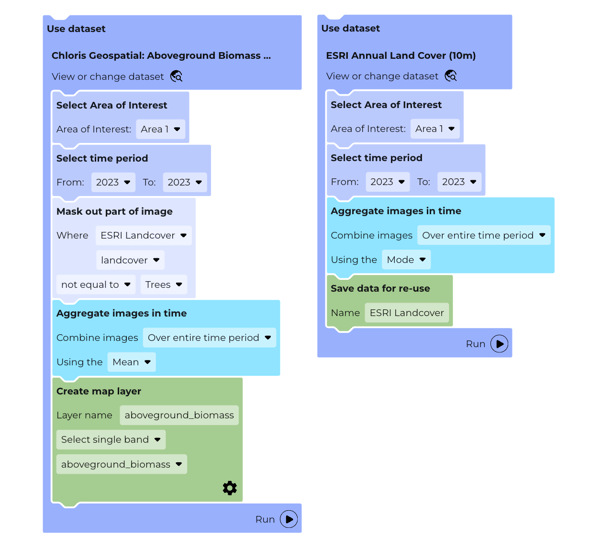
Note: You can also use this method to conduct calculations across multiple datasets.