
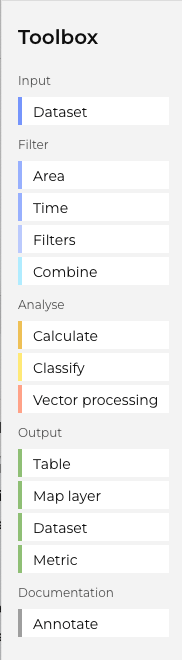
The toolbox is where you get access to the drag-and-drop blocks. Clicking on a heading exposes the blocks. For example, when clicking on Calculate, all the calculate blocks appear.
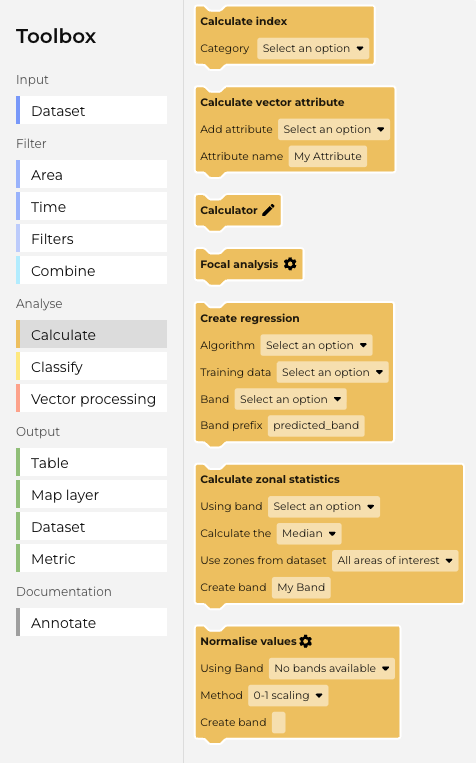
Click on the block you need, or drag it into the workspace. (The workspace is the blank canvas panel to the right of the toolbox).
The blocks are categorised, and colour coded, based on the four steps normally required to run a workflow. It is strongly advised that you drag and drop your blocks in this order:
Step 1: Input
- These blocks bring in the data that you select.
- The main data block block determines the type of data that is to be used. Notice how it is a container block (chaped like a "c") with space to add other blocks within it.
Step 2: Filter
- These blocks select for different features of the data, such as the location, the time period, or other properties of the data.
- A specific description of each block can be found by searching the Knowledge Hub or by right mouse clicking on a block and selecting About this block.
Step 3: Analyse
- If you want to extract information or further investigate the data you selected in Step 1, then you will need to choose a block that applies the required processing step. This might include a choice of index calculation, or the application of a bespoke algorithm via the Calculator block.
- This step is optional depending on what workflow you are trying to create and what insights you are trying to derive from the data.
- If you are simply visualising the data, rather than manipulating it in some way, you do not need an Analysis block.
Step 4: Output
- To view your data, or the results of your analysis, you need to select an output block of some kind.
- You can also add a Create Table block to generate tables and graphs.
- You can also add a download block to save any of the map outputs as a GeoTIFF (note that not all users have access to this feature).
- Every workflow needs an input dataset, so there is also a block to save the output from one workflow to use in another.
Not all blocks work together. If two blocks refuse to connect, you are probably trying to connect two blocks that are incompatible.
The final part of the Toolbox contains blocks used for documenting and annotating the workflow and are not part of the data processing.